Hardware-Accelerated GPU Scheduling: On or Off? (2026 Guide)
Last updated: October 2026
Quick answer: Leave Hardware-Accelerated GPU Scheduling (HAGS) ON — it's the Windows default since 2022, helps low-end CPUs slightly, and rarely hurts. Turn it OFF only if you're troubleshooting stuttering, use an older GPU with outdated drivers, or run specific applications known to conflict with it. Details below.
By PC Bottleneck Calculator · Reviewed October 2026 · Our methodology
What is Hardware-Accelerated GPU Scheduling?
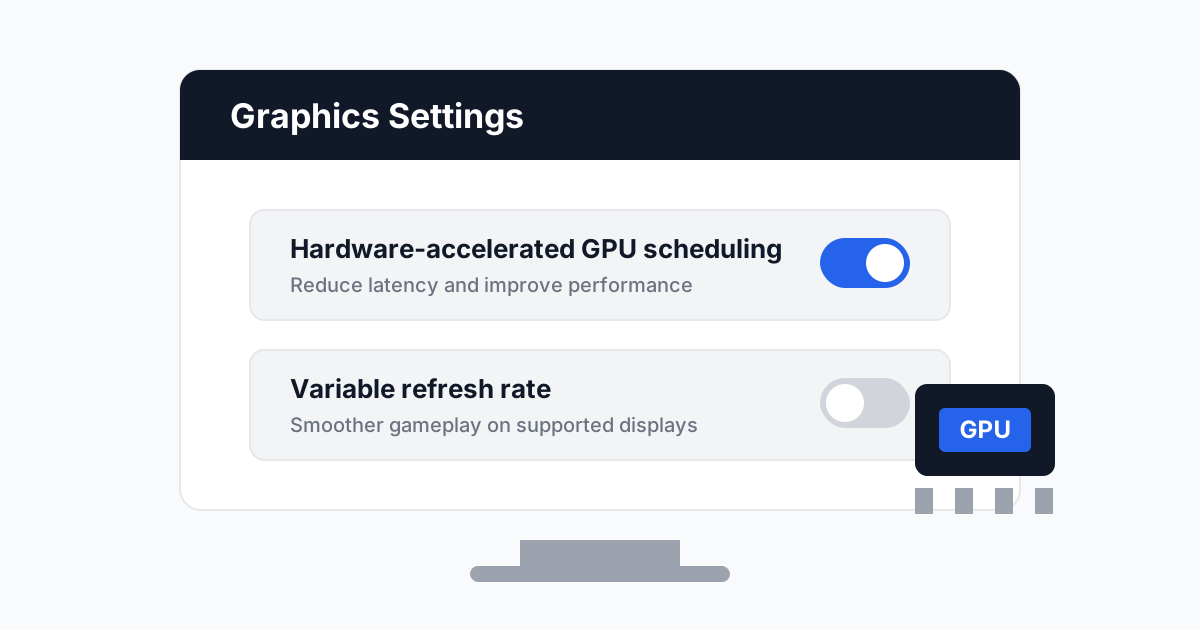
Normally, your CPU's scheduler manages GPU work — the processor decides which graphics tasks run and when, then hands them to the graphics card. With HAGS enabled, that scheduling moves to a dedicated unit on the GPU itself.
The practical effect: slightly lower CPU overhead in the graphics pipeline. In theory that means a little less latency and a little more headroom on the processor — particularly useful when the CPU is the limiting component in your system.
In practice, the difference is small. Independent testing across dozens of games typically shows 0–3% differences either way — sometimes marginally faster, sometimes marginally slower, usually within run-to-run variance. HAGS is not a magic FPS switch; it's a minor pipeline optimization.
Requirements
- Windows 10 version 2004+ or Windows 11 (any version)
- WDDM 2.7+ driver model — any NVIDIA driver from 2020 onward, AMD Adrenalin 20.5.1+, or Intel graphics drivers from 2020 onward
- A GPU that supports it: virtually everything from the last decade (GTX 10-series / RX 500-series and newer)
How to turn it on or off in Windows 11
- Open Settings → System → Display → Graphics.
- Click Change default graphics settings (under "Default graphics settings").
- Toggle Hardware-accelerated GPU scheduling on or off.
- Restart your PC — the change only takes effect after a reboot.
How to turn it on or off in Windows 10
- Open Settings → System → Display.
- Scroll down and click Graphics settings.
- Toggle Hardware-accelerated GPU scheduling on or off.
- Restart your PC.
When to turn HAGS ON
- You're running Windows 11. It's the default, it's stable, and there's no reason to change it.
- Weak CPU + decent GPU. If our bottleneck calculator shows a CPU limitation, HAGS trims a little CPU overhead — every bit helps.
- Laptops. Lower CPU involvement in scheduling can marginally help battery life during GPU workloads.
When to turn HAGS OFF
- You're troubleshooting stuttering or crashes. HAGS is a known (if uncommon) culprit in specific driver/game combinations. If problems started after a driver update, toggling it off is a legitimate diagnostic step.
- Very old GPUs or drivers. Pre-2020 driver stacks sometimes behave badly with it.
- Specific professional applications. Some CAD, virtualization and capture tools document HAGS conflicts — if your software vendor says to disable it, listen to them.
- You're benchmarking. Reviewers often disable it for consistency, since its effect varies run to run.
HAGS vs Resizable BAR: don't confuse them
These two settings get mixed up constantly because they both involve the CPU talking to the GPU. They're different things:
| HAGS | Resizable BAR (ReBAR) | |
|---|---|---|
| What it changes | Who schedules GPU work (GPU instead of CPU) | How much VRAM the CPU can access at once |
| Typical effect | 0–3% | 0–10% (game-dependent, sometimes negative) |
| Where to enable | Windows graphics settings | Motherboard BIOS + GPU driver |
| Risk | Very low | Low, but a few games regress — per-game profiles exist |
They're independent — you can (and usually should) run both enabled. If you're chasing free performance, enable ReBAR first: its upside is larger. Then verify your CPU/GPU balance with our bottleneck calculator, since ReBAR benefits CPU-limited scenarios most.
How to check if it's actually working
- Open Task Manager → Performance → GPU.
- If HAGS is active, you'll see the GPU handling its own scheduling — there's no direct toggle indicator, but driver panels confirm it:
- NVIDIA: no separate indicator; enabled state follows the Windows toggle.
- AMD: Adrenalin → Settings → Graphics → the feature follows Windows.
- The most reliable test is empirical: run a repeatable in-game benchmark with it on, reboot, run it off, and compare 1% lows (not just averages).
HAGS won't fix a genuine mismatch — find out whether your CPU or GPU is the actual bottleneck first.
Sources & further reading
- NVIDIA official site — GeForce GPU specifications and driver resources.
- AMD official site — Ryzen processor specifications and platform documentation.
Frequently Asked Questions
Does HAGS increase FPS?
Marginally, sometimes — typically 0–3%, and occasionally it costs a frame or two. It's a latency/overhead optimization, not a performance feature. Don't expect miracles.
Should I enable HAGS for gaming?
Yes, leave it on unless you have a specific problem. It's the default for a reason and helps CPU-limited systems slightly.
Why is the HAGS option greyed out?
Your GPU driver doesn't meet the WDDM 2.7 requirement, or you're on a Windows 10 build older than version 2004. Update Windows and your GPU driver.
Does HAGS help with bottlenecks?
Slightly, on the CPU side — it reduces scheduling overhead. But it won't fix a real mismatch: an i3 paired with an RTX 4080 needs a CPU upgrade, not a toggle. Check your actual balance with our bottleneck calculator.
HAGS on or off for VR?
Leave it on. VR runtimes are sensitive to latency, which is exactly what HAGS targets — though the difference remains small either way.
Methodology note: This guide is based on Microsoft's documentation and published independent testing of HAGS across driver generations. Performance deltas cited are typical ranges from public benchmarks, not our own lab measurements.